How to Use Save Text to Audio
1. Click on the Save Text to Audio icon in your browser toolbar to open the extension popup.

2. In the popup, you'll see options to customize your experience:
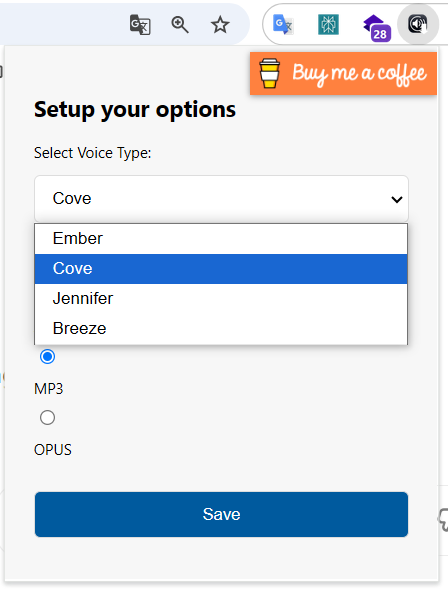
- Choose your favorite voice type from the drop-down menu.
- Select the output audio format (e.g., MP3 or WAV) that works best for you.
3. After selecting your preferences, click the "Save" button to apply these settings.
4. Open a new tab and go to the ChatGPT website.
5. Have your conversation with ChatGPT as usual.
6. When you're ready to save the conversation as audio, look for the download button added by the extension.
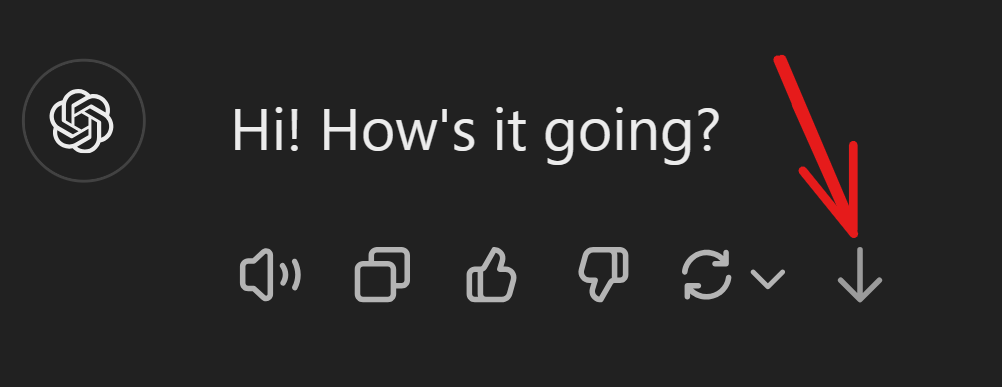
7. Click the download button, and the extension will save your conversation as an audio file using the settings you configured earlier.
8. Enjoy listening to your ChatGPT conversation as an audio file!